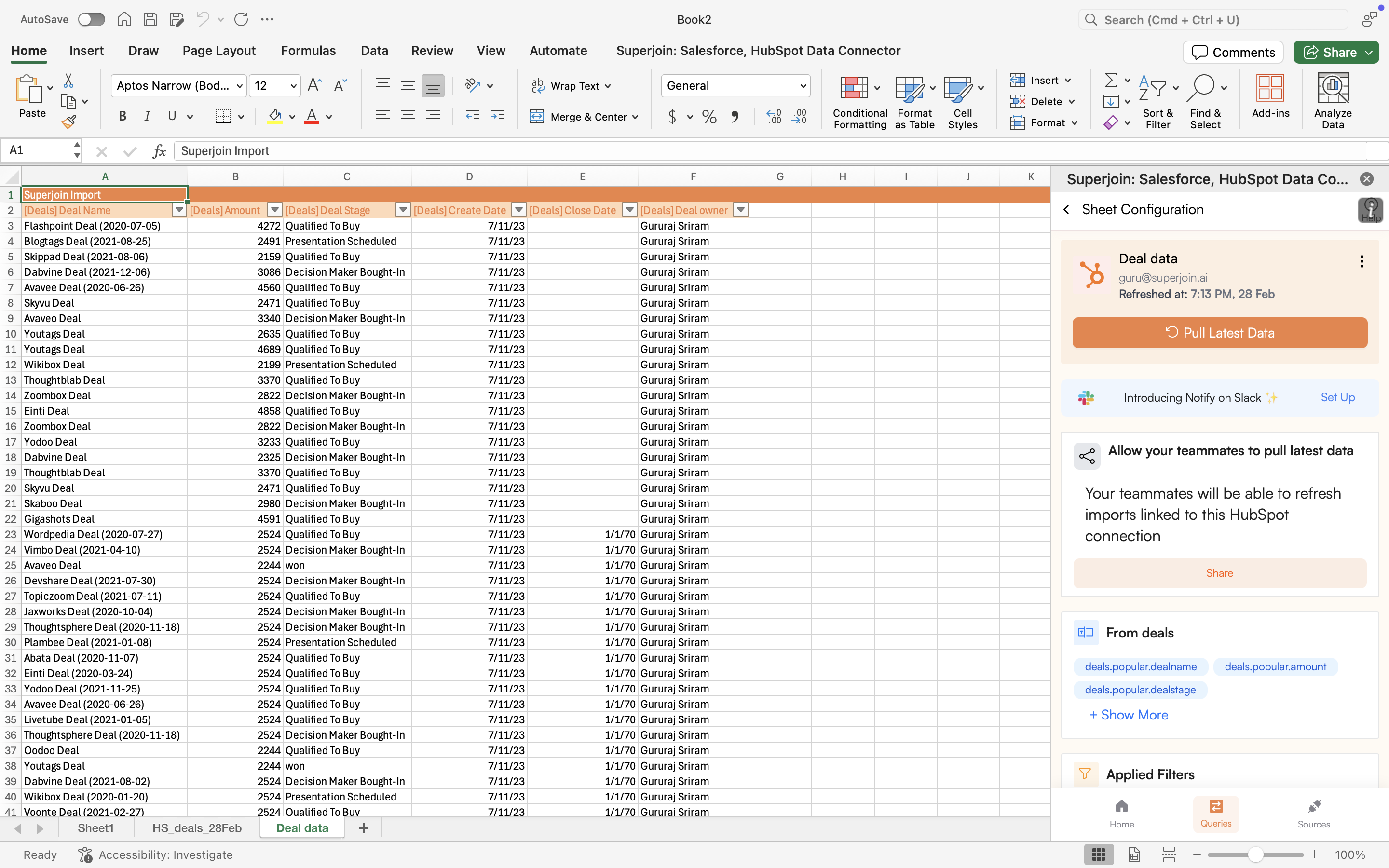
- Google Sheets
- Microsoft Excel
Preview Data
After connecting your account, a data preview window will appear, allowing you to modify your 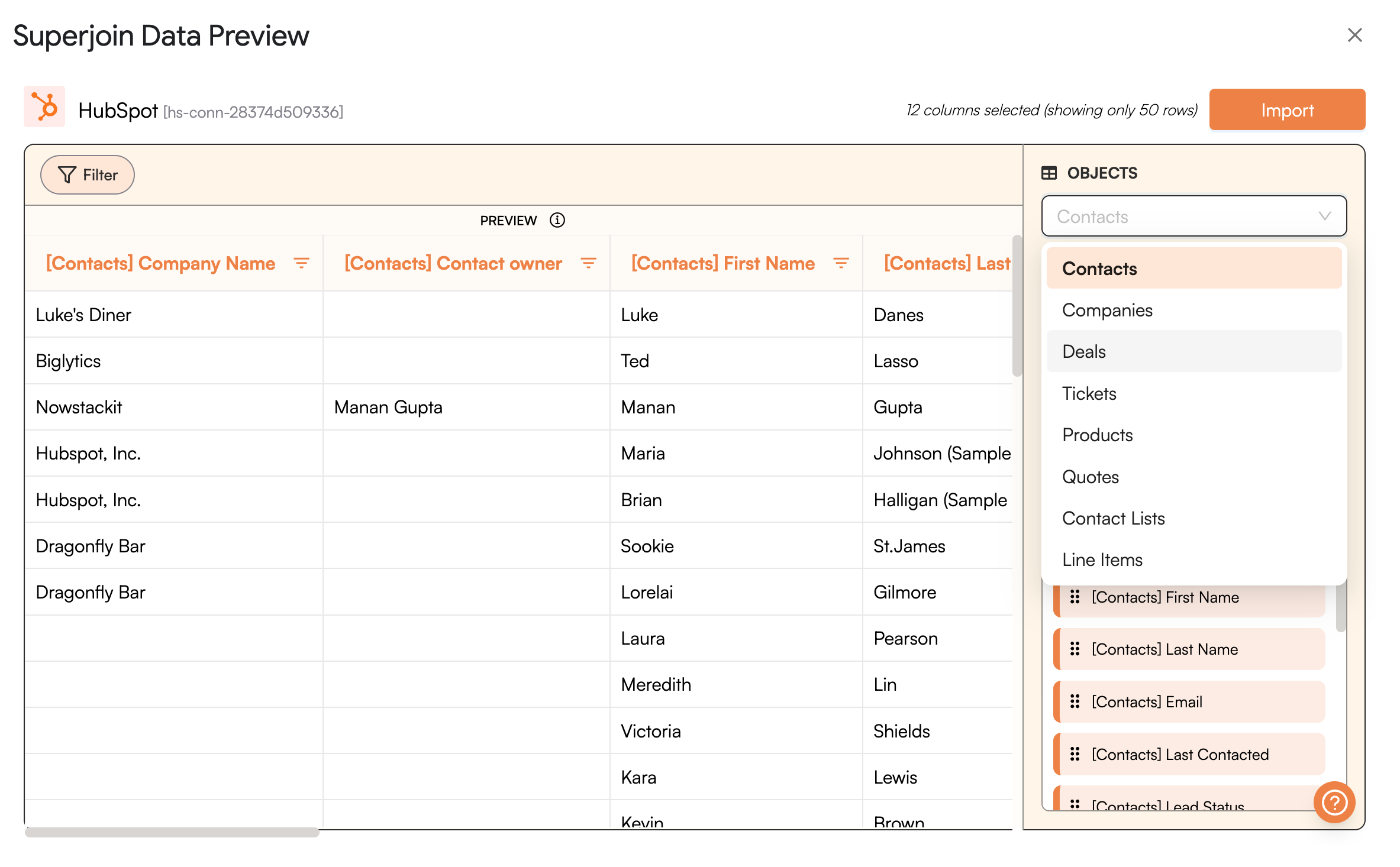
Objects and apply various Filters to refine your data.Add Associations
You can also select 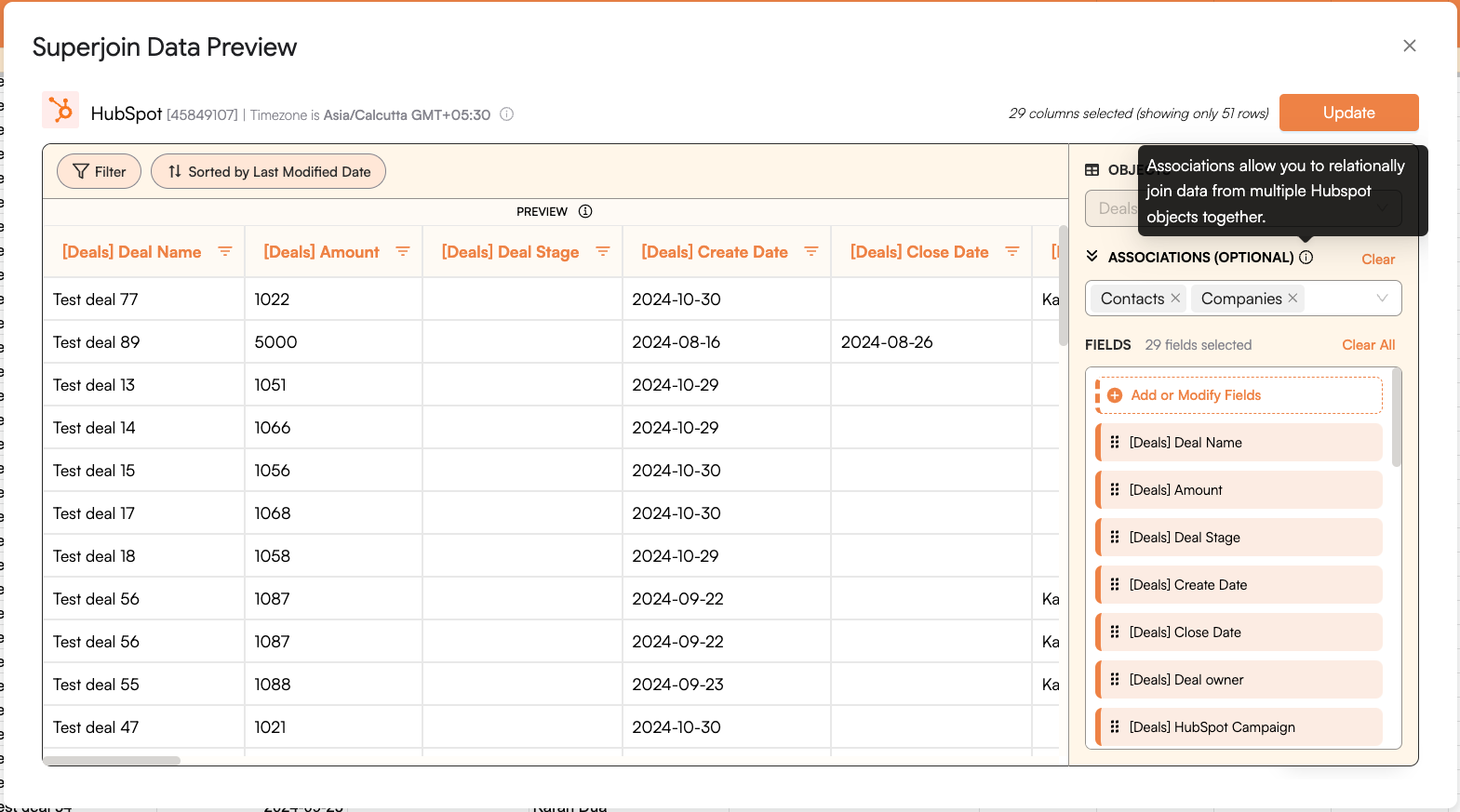
Associations as per your need. Associations allow you to relationally join data from multiple HubSpot objects together.Add/Modify columns
Add/modify the data fields you want to import. The 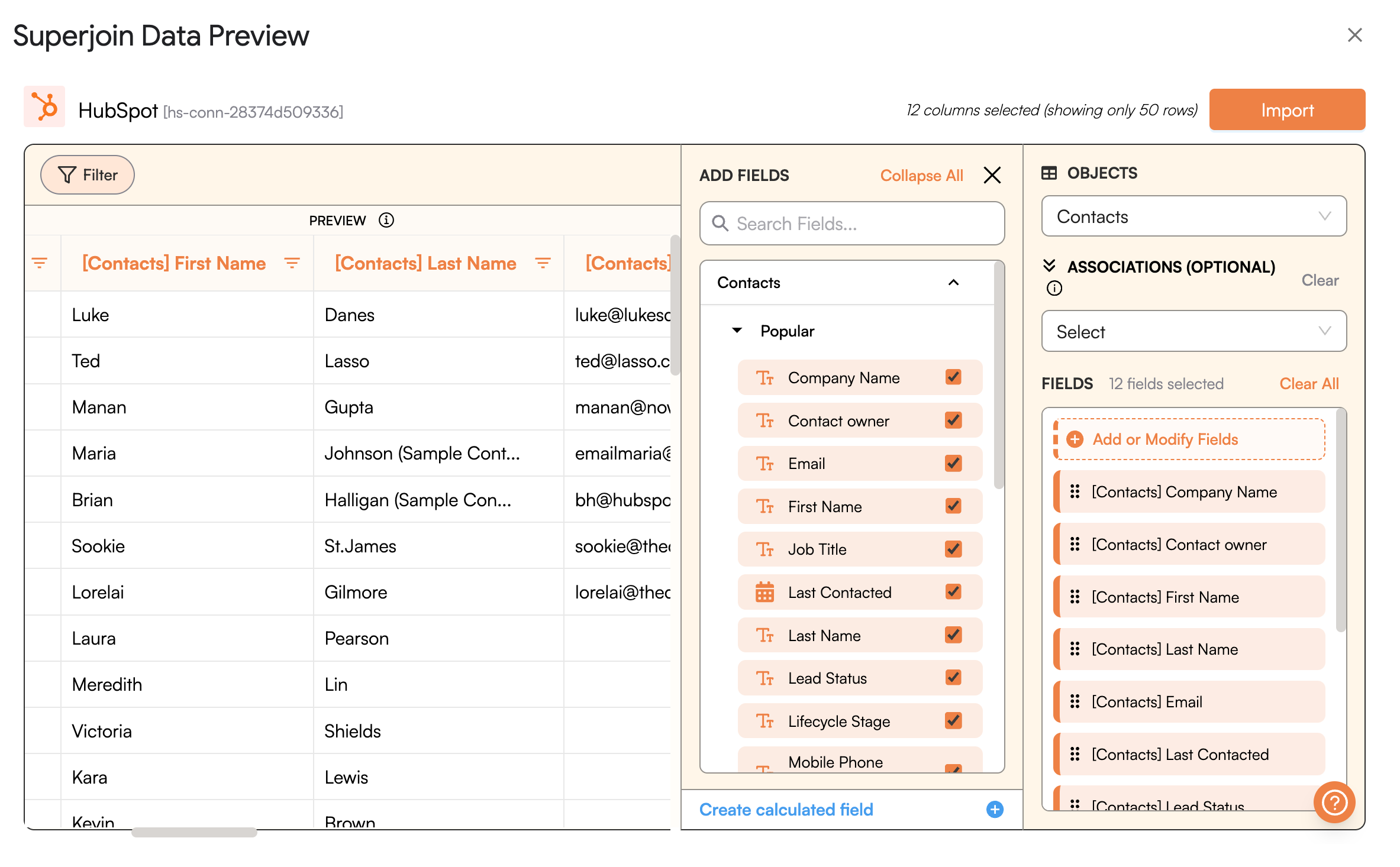
Fields you selected should start showing up in the data preview section.Import Data
After previewing the data, click on 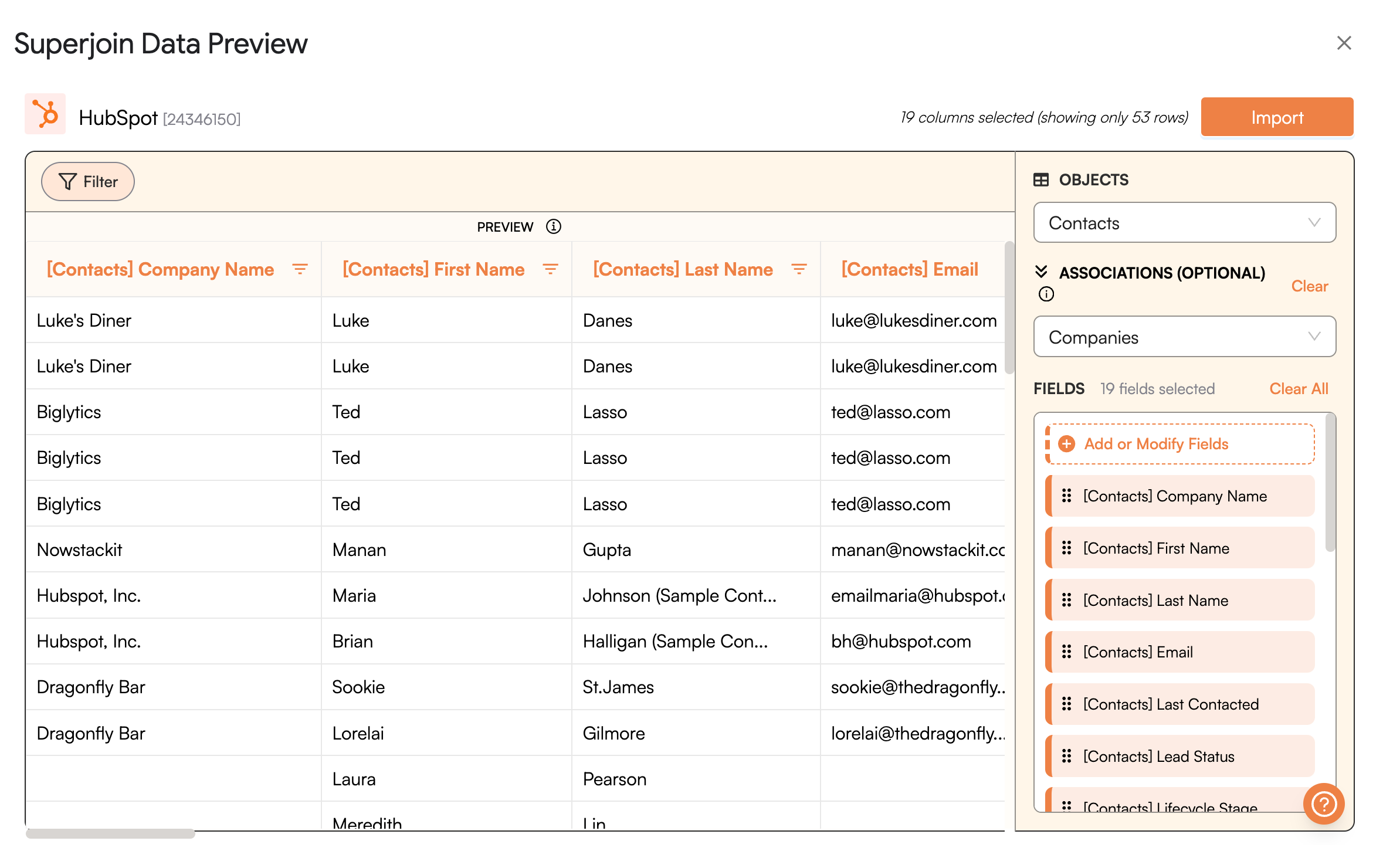
Import and wait for a few seconds. This action transfers all data from your HubSpot account into Google Sheets.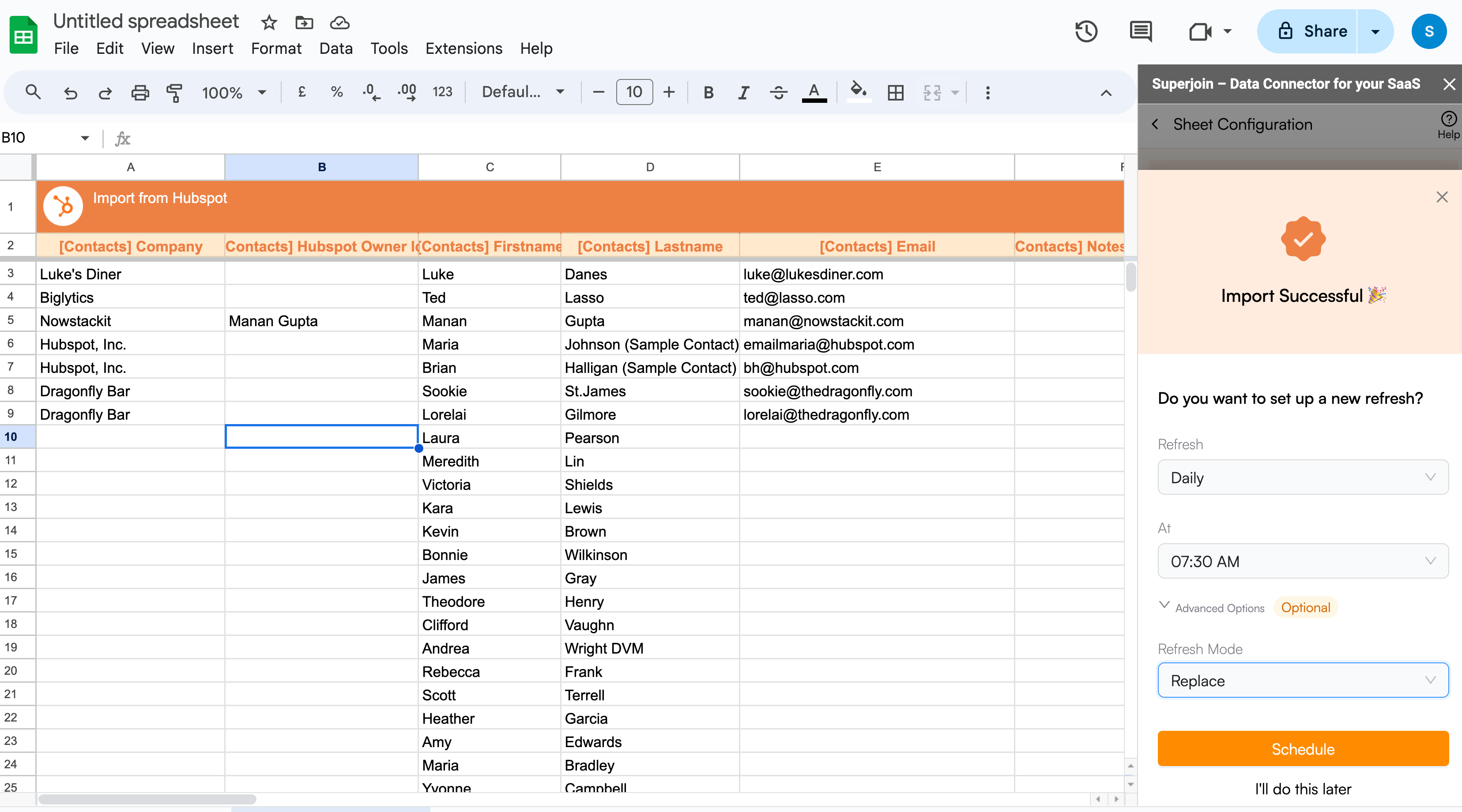
If you want to export changes you made in the imported data back into HubSpot, head over to the Export Data tab or click on the box below.
Export Data
Step-by-step guide to export data from Google Sheets to HubSpot